

Sign in with Google
Surface Area uses Google sign-in. Open your Surface Area instance and select Continue with Google on the sign-in page. Your organization allows specific Google domains. An account on an allowed domain lands in the dashboard; any other account is refused. Ask whoever administers your instance to add your domain or invite your account.Some instances also offer email-and-password sign-in and other providers. Every method reaches the same dashboard.
Organizations hold projects
Surface Area groups work into organizations, and each organization holds one or more projects. A project owns worlds, traces, scenarios, evaluators, and API keys. After signing in, pick your organization, then pick a project inside it. Everything in these guides happens inside a single project, and the project ID appears in the URL as/project/{projectId}/....
If you belong to more than one organization or project, switch between them using the selectors in the top navigation.
Create API keys in project settings
Your agent connects to Surface Area with two keys: a public key and a secret key. Create both in project settings.1
Open project settings
Navigate to your project, then open Settings. Select the API keys tab.
2
Create a new key pair
Select Create new API keys. Add an optional note to label the key, then confirm. Surface Area generates a public key and a secret key.
3
Copy the keys immediately
Copy both keys from the dialog. The settings panel also shows a ready-to-paste
.env block with the host and both keys filled in.The secret key is shown only once, at creation time. Copy it before closing the dialog. If you lose it, delete the key and create a new pair — the old secret cannot be recovered.
gateway auth login --host ... --public-key ... --api-key ... stores them instead, and the environment wins when both are present.
The API keys tab also lists every key on the project, so you can revoke any key you no longer use. The LLM connections tab is separate — it stores the provider keys (for example, Anthropic or OpenAI) that Surface Area itself uses to run evaluators and judges.
Read the project landing page
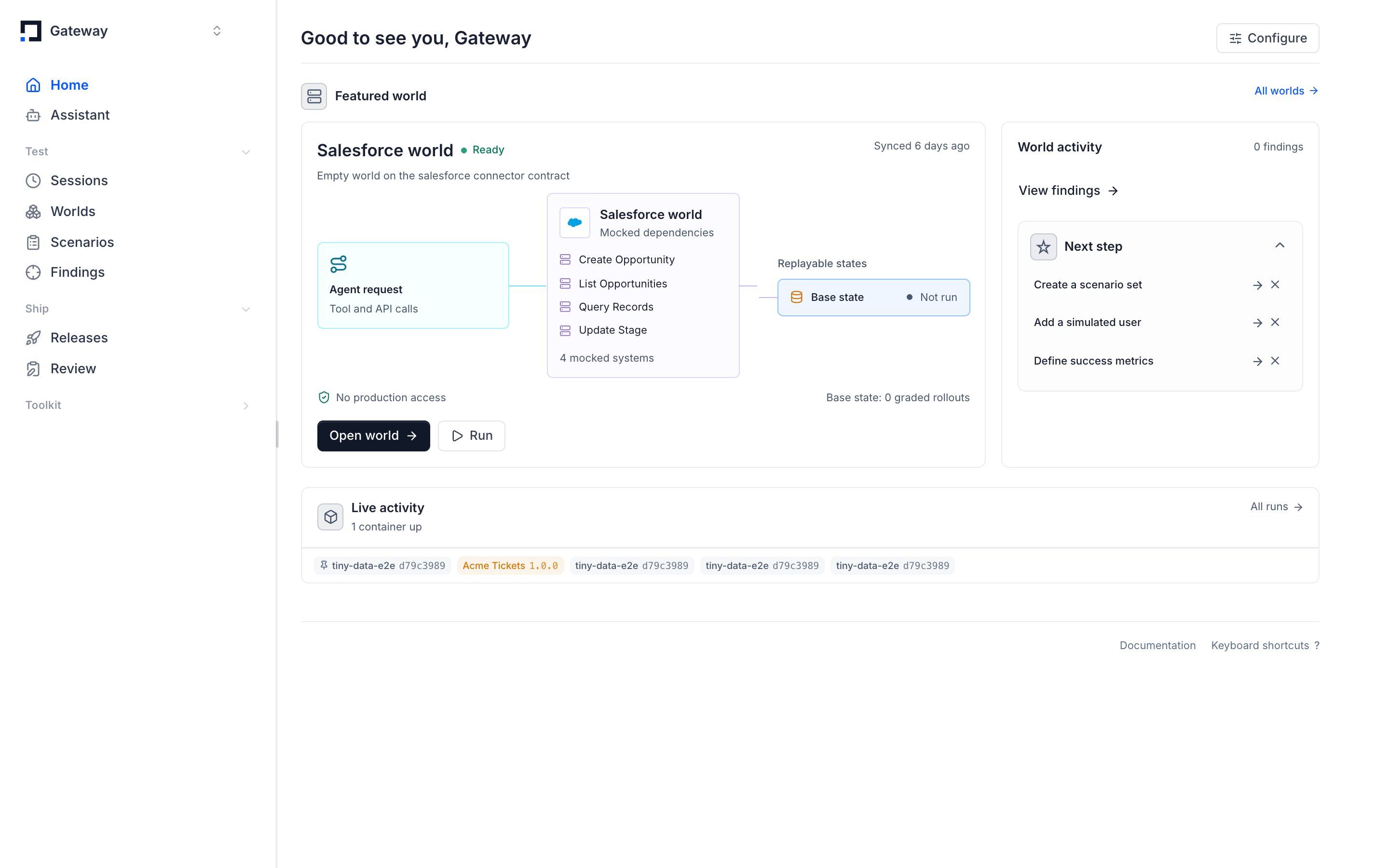
Opening a project lands you on a summary page. Its numbers come from your project’s data and change as traffic and scores come in. Live metrics show recent sessions, traces over the last seven days, evaluator pass rate, and spend. Connected systems are the surfaces wired to your agent. Each card is a shortcut into one part of the dashboard with a current count and a status badge:
A status badge highlights anything that needs attention — a world whose latest build failed, or pending review items. Select any card to jump to that surface.
An empty landing page means the project has no data yet. Create a world and grade a run against it (see Quickstart), refresh, and the counts populate.