

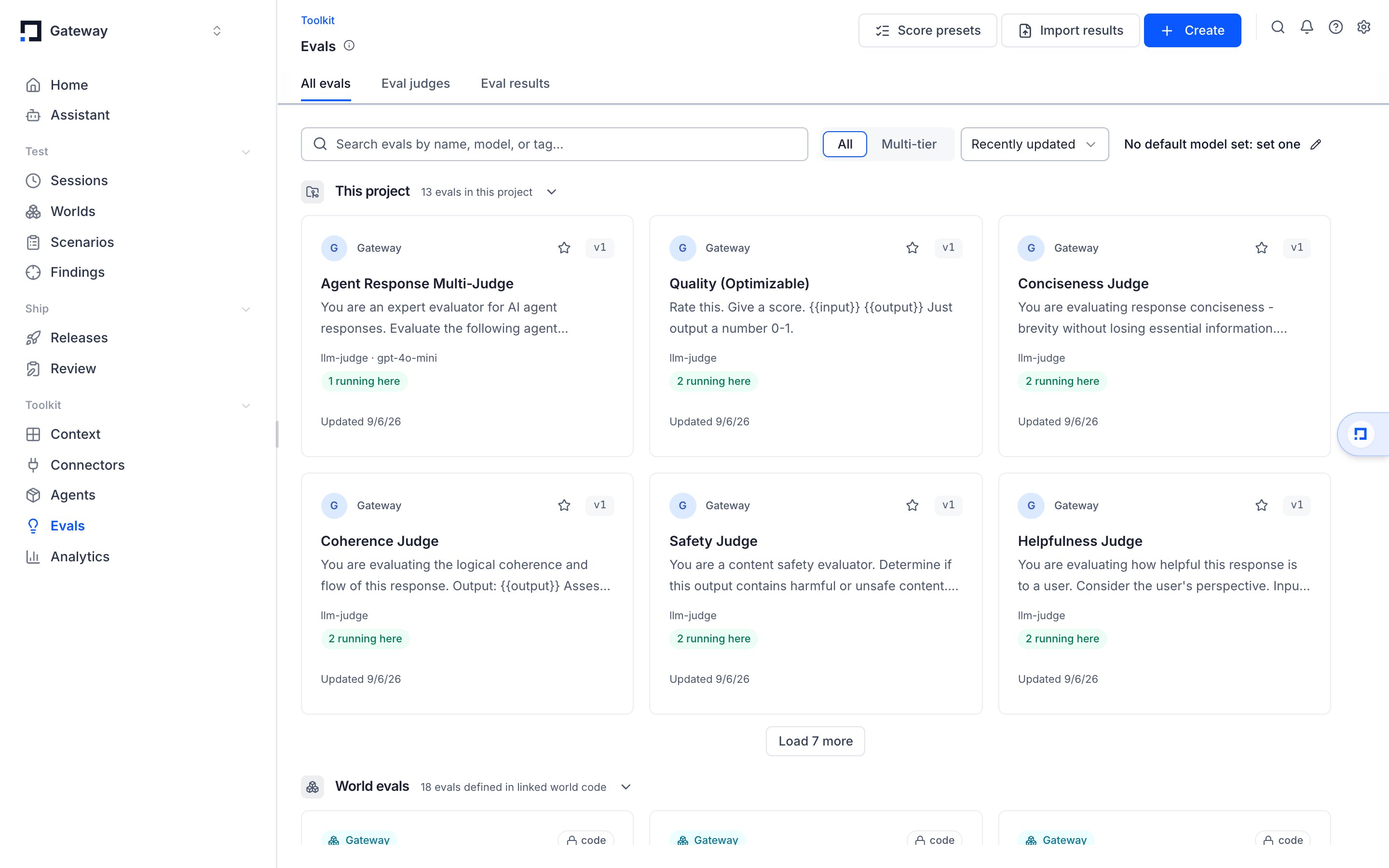
How evaluation works
A check watches for runs that match a filter, sends each one to a judge with your criteria, and writes the verdict back as a score on the run. The default judge is an LLM. You give it a prompt describing what “good” looks like, and it returns a score plus its reasoning. Deterministic checks score with code instead of a model. Each score has a name, a value, and a data type, and attaches to the trace or session that was graded. Scores appear as columns in Tracing, roll up into a run’s pass rate, and are what a release gate reads.LLM and agent checks need a default evaluation model. Set one with Default model on the Checks page before you create a check — a check with no model fails fast. The model needs a provider connection (for example an Anthropic or OpenAI key under Settings → LLM connections).
Create a check
Open Checks from the project navigation and select New check.1
Name the check and pick how it runs
Give the check a score name — the name its scores carry. Then choose an execution mode:
2
Write the criteria
For an LLM or agent judge, write the criteria the judge grades against. Describe a passing run in plain language. The judge reads your criteria together with the run’s input and output.Deterministic checks take a rule type instead, such as Exact Match, Contains, Regex Match, or Valid JSON. Custom code checks take a Python script.
3
Choose what the check runs on
Pick the target: trace to grade individual runs, or session to grade a whole conversation or workflow. The target decides which data the check can see.Add a filter to narrow the target down — by the trace’s
environment field, a tag, metadata, or any other condition. Leave the filter empty to grade everything. A preview shows the most recent matching runs while you build the filter.4
Set the time scope
The time scope decides which runs the check grades:
Running a check on Existing runs is a one-time backfill. Pick a tight filter before you grade existing data so you do not backfill more runs than you mean to.
5
Map your data into the judge
Variable mapping connects the placeholders in your prompt to fields on the run. A prompt that uses
{{input}} and {{output}} needs each variable pointed at a column — for example the trace input and the trace output.Surface Area infers a default mapping from your prompt’s variables. Adjust it when the field you want to grade is not the top-level input or output.The Checks page has a Build checks with the agent card. Tell the agent the behavior to verify, and it drafts the check, runs it, and keeps the results on the page.
Choose a score’s data type
Each check defines a score config — the shape of the value it writes. Reuse an existing config or create a new one.
A score config also carries an optional description shown to human annotators, so machine scores and human review use the same definition. Sharing one config across checks keeps the scoring schema consistent.
A categorical judge can correctly return no label when nothing applies. Surface Area treats a missing score as its own state, never as zero — absent and zero stay distinct in tables and charts.
Produce several scores from one check
One check can write several scores from a single judge call. Add multiple scores to the check, each with its own name, criteria, and score config. The judge reads the run once and returns every score together. Use multi-score checks when one run needs grading on several independent dimensions — accuracy, relevance, and tone, for example.Tune when and how often a check runs
Sampling sets the fraction of matching runs to grade, from 0 to 1. Lower it to spend less on high-volume traffic; 1 grades every match. Delay holds a new run for a short window before grading, so late-arriving spans are included. A session check waits a configurable amount of time after the last activity before it grades the session as complete. Model override gives one check a different provider, model, or model parameters than the project default.The model a check uses drives its cost. A check left on the default evaluation model at full sampling on high-volume traffic can run a large number of judge calls. Start new checks at a lower sampling rate and raise it once you trust the check.
Stack checks into multi-tier evaluations
A multi-tier evaluation runs an expensive check only on the runs a cheaper check flags first. Stack checks you have already built into tiers, put a gate between them, and a run escalates to the next tier only when the gate’s condition holds. Open the Multi-tier view on the Checks page and select Build a multi-tier eval to stack existing checks onto the canvas.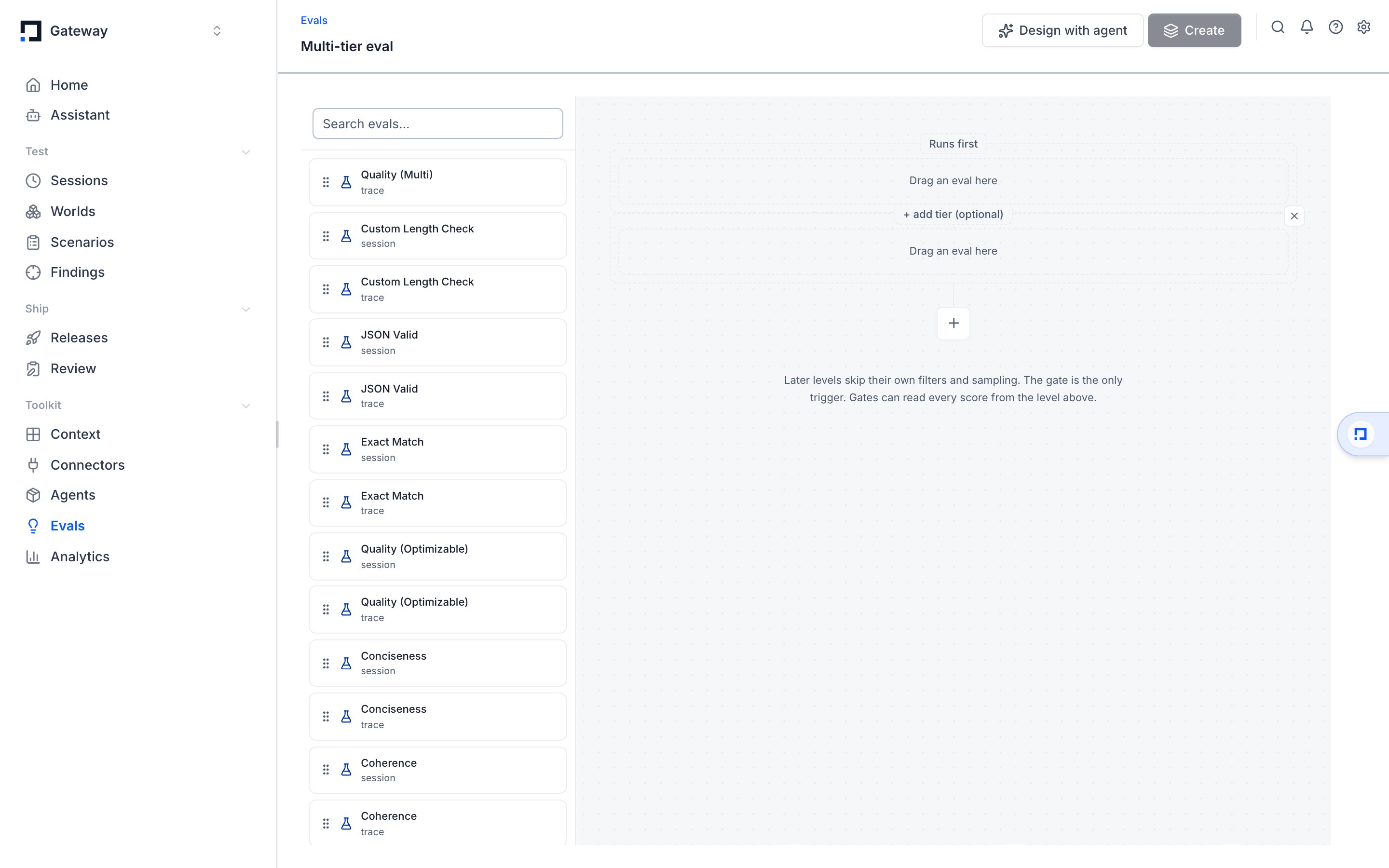
The checks in a tier share one target — all traces, or all sessions. Later tiers ignore their own filter and sampling settings; the gate is their only trigger. Choose per gate whether a missing score skips the next tier or runs it anyway.
The Assistant can wire multi-tier checks for you — tell it “only run the detailed check when the quick one fails,” and it links the tiers and gates. See the Assistant.
Put your cheapest, fastest check first — a deterministic rule or a small model — and gate the expensive LLM or agent judge behind it. Later tiers run only on gate matches and skip their own sampling, so the expensive judge grades a fraction of your traffic.
Read the scores a check produces
The Results tab on the Checks page lists the scores the project’s checks have written. In Tracing, each evaluator’s scores get their own column on the sessions and traces tables, so you can scan quality across many runs and filter by score value. Open a scored run to see the score next to the run’s input and output — exactly what the judge read.Keep checks healthy
The Checks table shows each check’s health and recent results, and gives you the controls to manage it. Activate / Deactivate turns a check on or off from its row. A deactivated check stops grading new runs but keeps its history and scores. Rerun failed retries only the runs whose grading errored; Rerun all re-grades every matching run. Both are in the row’s menu.Editing and saving a check triggers a fresh grading batch. To grade runs whose grading was cancelled, save the check or rerun it.
Benchmarks versus checks
A check scores runs that already happened: a judge reads each matching trace or session and writes a score. A benchmark produces the runs: a world with tasks, each task a prompt plus SQL verifiers over the world’s end state, run k times per model.
A benchmark’s rollouts are sessions, so a check can score them too. Build one with gateway benchmarks; the task contract is on Benchmarks on worlds. A harbor benchmark grades a container instead, runs on the benchmark runner, and reads back through the same results commands.
Where evaluation connects to the rest of Surface Area
- Worlds are where a candidate version is run. A check scores those runs the same way it scores production traffic. Benchmarks on worlds turn a world’s tasks into repeatable runs per model.
- Scenarios & task sets hold the situations a world runs, each with the conditions that decide whether it passed.
- Agent Replay re-runs real sessions against a new version, and an evaluator grades a replay session the same way it grades a live one.
- Tracing holds the sessions and traces every check grades, and shows the scores as columns you can filter and read.