> ## Documentation Index
> Fetch the complete documentation index at: https://docs.surfacearea.ai/llms.txt
> Use this file to discover all available pages before exploring further.
# Sessions & traces
> Group related traces into one session so a multi-turn conversation or workflow reads as a single interaction.
A session ties several traces to one conversation or workflow. Set a session id on your spans and Surface Area groups the matching traces into one view.
## Sessions auto-populate
Every trace belongs to a session, even when you write no grouping code. At `tracing.init()` the SDK establishes a process-wide session id, and traces inherit it.
The ambient session id resolves in this order: the `GATEWAY_SESSION_ID` environment variable if set (a stable pin, useful across restarts), otherwise an id generated once per process. Finer-grained boundaries -- a [`tracing.session()` block](#group-a-block-of-traces-with-tracingsession), a [world session](#trace-inside-a-world-session), an explicit attribute, a [run rollout](#group-traces-with-run-and-rollout-context) -- override the ambient default per span.
For one span, the first of these that applies wins:
1. A run rollout's session id.
2. A session id set on the span when it is created.
3. The innermost `tracing.session()` block or world session.
4. `GATEWAY_SESSION_ID`, then the per-process id.
A trace belongs to one session, so give all of its spans the same one: open the block before the trace's first span.
Set `GATEWAY_SESSION_ID` when you want every trace from a process to land in one named session, for example one session per deployment or per job. Leave it unset to get a fresh session id each time the process starts.
## Group a block of traces with tracing.session()
`tracing.session()` names a session for a block. Every span created inside carries the session id: your own `trace` and `span` blocks, auto-instrumented LLM calls, and tool spans alike.
```python theme={null}
import gatewaysdk.tracing as tracing
tracing.init(service_name="support-bot")
with tracing.session("conversation-42"):
with tracing.trace("turn", input="How do I reset my password?"):
... # First turn, grouped under conversation-42
with tracing.trace("turn", input="And how do I change my email?"):
... # Second turn, same session
```
Grouping works through context propagation, so you name the session once for the whole block. Nested `tracing.session()` blocks use the innermost id.
## Set the session id on a span
Set the `tracing.semconv.SESSION_ID` attribute to the same stable value on every turn, and Surface Area collects those traces under one session.
```python theme={null}
import gatewaysdk.tracing as tracing
tracing.init(service_name="support-bot")
with tracing.trace("turn", input="How do I reset my password?") as span:
span.set_attribute(tracing.semconv.SESSION_ID, "conversation-42")
answer = "Open settings and choose Reset."
span.set_attribute(tracing.semconv.TRACE_OUTPUT, answer)
```
`semconv.SESSION_ID` maps to the attribute key `gateway.session.id`. Use a value that is stable for the conversation and unique across conversations, such as a chat thread id or a request id you already track.
Pair the session id with `tracing.semconv.USER_ID` (`gateway.user.id`) when you know who the conversation belongs to. Surface Area then filters sessions by user as well as by session. See [Metadata & identity](./metadata).
## Trace two turns into one session
The example below traces two turns and groups them under `conversation-42`.
```bash theme={null}
export GATEWAY_HOST="https://withgateway.ai"
export GATEWAY_PUBLIC_KEY="pk-lf-..."
export GATEWAY_SECRET_KEY="sk-lf-..."
```
```python theme={null}
import atexit
import gatewaysdk.tracing as tracing
tracing.init(service_name="support-bot")
atexit.register(tracing.shutdown)
SESSION = "conversation-42"
def reply(question: str) -> str:
with tracing.trace("turn", input=question) as span:
span.set_attribute(tracing.semconv.SESSION_ID, SESSION)
answer = f"Reply to {question!r}"
span.set_attribute(tracing.semconv.TRACE_OUTPUT, answer)
return answer
reply("How do I reset my password?")
reply("And how do I change my email?")
```
Run the script, then open your project in Surface Area and go to the Sessions view. Both turns appear under one `conversation-42` session, in order.
## Group traces with run and rollout context
A run and its rollouts assign session ids for you. Each rollout opened inside a run gets its own session id, and every trace created inside that rollout inherits it with no `set_attribute` call.
```python theme={null}
import gatewaysdk
with gatewaysdk.run("nightly-eval") as run:
for case in ("case-1", "case-2"):
with run.rollout(case) as rollout:
with gatewaysdk.tracing.trace("turn", input=case):
handle(case)
# Traces in this block share the rollout's session id.
```
Read the active rollout's session id from its `session_id` property when you need it elsewhere, for example when attaching a score to the same session.
```python theme={null}
with gatewaysdk.run("nightly-eval") as run:
with run.rollout("case-1") as rollout:
do_work()
rollout.score("accuracy", 0.9) # Linked to rollout.session_id
```
## Trace inside a world session
When your agent works in a live [world session](/worlds/sessions), its traces belong with that session. The platform already traces the session's tool calls under the world session's id, so trace your agent inside the session and both land in one place.
```python theme={null}
import gatewaysdk.tracing as tracing
from gatewaysdk.world_sessions import open_session
tracing.init(service_name="support-bot")
with open_session("acme-billing", "refund-late-invoice") as s:
s.ready()
my_agent(s.toolkit(), s.instruction) # Traced under s.session_id
```
The `with` block does it for you. For a session you did not open with `with`, wrap the work in `s.trace_context()`. In TypeScript, use `session.withTraceContext(fn)`. `run_sessions` and `runSessions` trace every agent call this way.
Spans started inside take the world session's id as their session id and carry `world_session_id` in their trace metadata. A `tracing.session()` block inside, or a run rollout, still sets the session id; the metadata stays. A `tracing.session()` block outside is overridden for the length of the world session. Open the world session before your agent's first span: a span started earlier keeps the id it started with, and its trace can then land in that session instead.
Nothing is recorded until `tracing.init()` has run, and the session page shows the traces only when they are sent with keys for the project the world session belongs to. Threads your agent starts do not inherit the scope: enter `s.trace_context()` inside them, and leave the block on the thread that entered it.
## Set the session id on auto-instrumented LLM calls
Auto-instrumented LLM calls produce spans where no `tracing.trace` block is in scope. Use `tracing.tracing_context(session_id=...)` to attach a session id to those spans for the duration of the block.
```python theme={null}
import gatewaysdk.tracing as tracing
with tracing.tracing_context(session_id="conversation-42"):
response = client.chat.completions.create(...) # Span gets the session id
```
When no session id is set on a span (no `tracing_context`, no run rollout), the span falls back to the process-wide ambient session id.
## Read sessions and traces in the dashboard
Open **Sessions** from the project navigation to see the sessions table. Each row is one session; the trace evidence view sits one level down and lists the individual traces inside it.
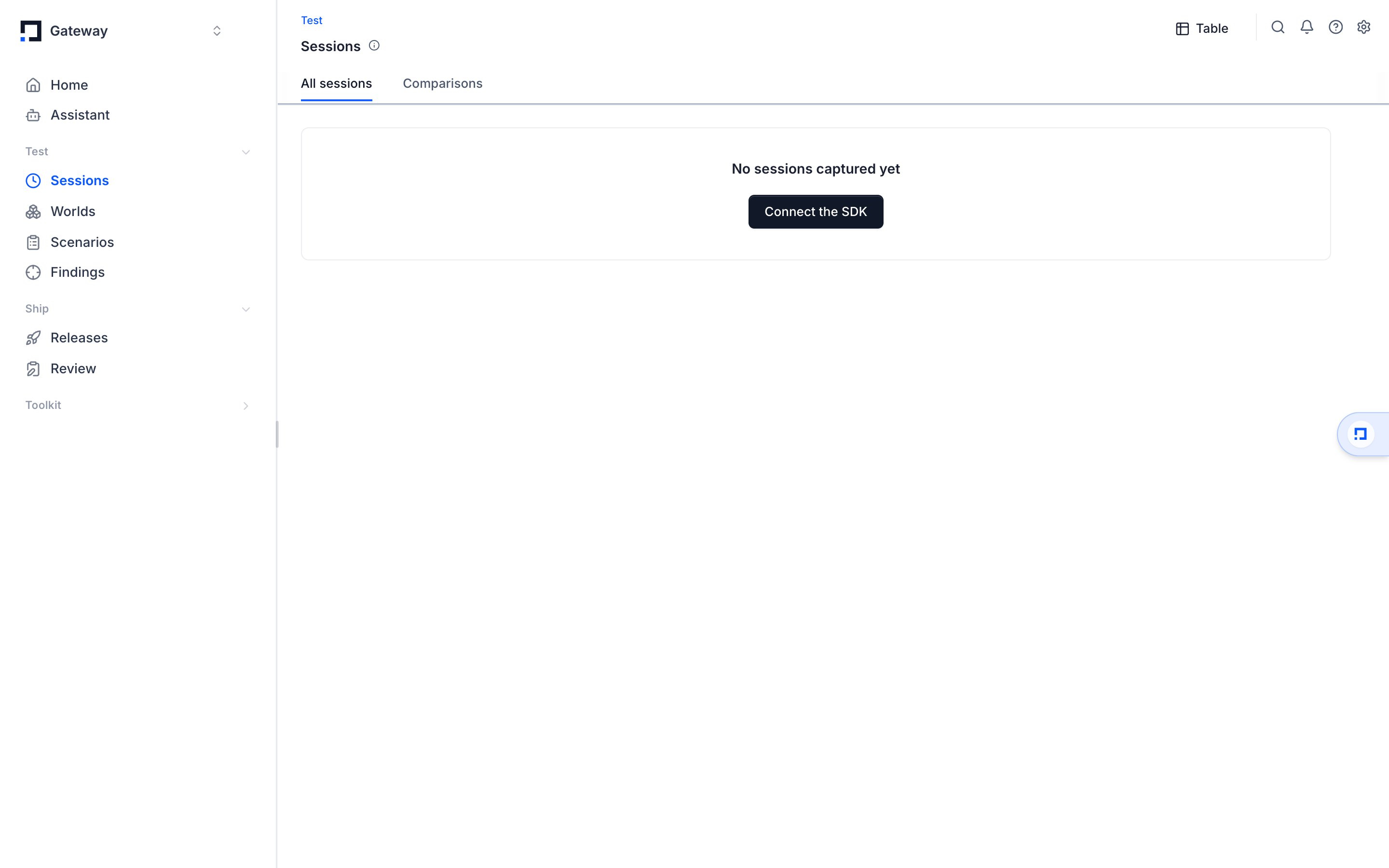 *The Sessions table under Observe. Each row is one session, with its environment, user, trace count, duration, and cost.*
Both tables share a sidebar filter. Common session filters:
| Filter | What it narrows by |
| - | - |
| Environment | The environment label the trace was sent with |
| User IDs | The end user attached to the traces |
| Trace Tags | Tags your agent set on its traces |
| Trace Metadata | Any key/value metadata on the traces |
| Numeric Scores / Categorical Scores | Evaluator scores by value |
| Session Duration / Traces Count | Size and length of the session |
| Total Cost / Total Tokens | Spend and token usage |
| Session ID | A specific session you already know |
Select any row to open its detail view: every trace inside the session in order, and from there the full call tree of any one trace, each LLM call and tool call with latency, token counts, cost, and the messages exchanged.
*The Sessions table under Observe. Each row is one session, with its environment, user, trace count, duration, and cost.*
Both tables share a sidebar filter. Common session filters:
| Filter | What it narrows by |
| - | - |
| Environment | The environment label the trace was sent with |
| User IDs | The end user attached to the traces |
| Trace Tags | Tags your agent set on its traces |
| Trace Metadata | Any key/value metadata on the traces |
| Numeric Scores / Categorical Scores | Evaluator scores by value |
| Session Duration / Traces Count | Size and length of the session |
| Total Cost / Total Tokens | Spend and token usage |
| Session ID | A specific session you already know |
Select any row to open its detail view: every trace inside the session in order, and from there the full call tree of any one trace, each LLM call and tool call with latency, token counts, cost, and the messages exchanged.
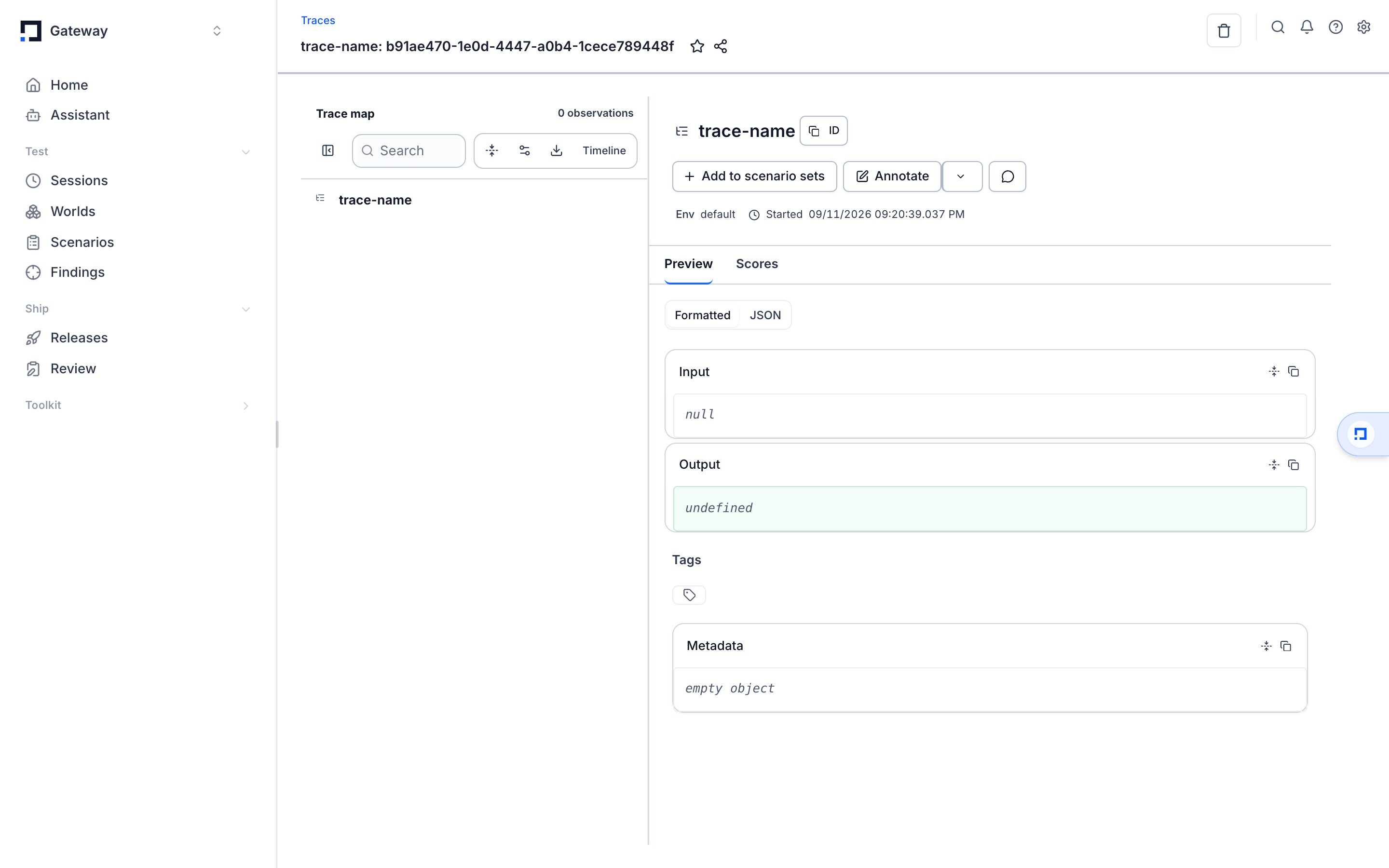 *A single trace: the Trace map on the left, and the Preview, Log View, and Scores tabs showing the captured input, output, tags, and metadata.*
Filters live in the URL, so a filtered view is a shareable link. A blank score cell means no evaluator graded that run on that criterion: Surface Area never treats a missing score as zero.
## Where to go next
* [Metadata & identity](./metadata): attach users and agents that sessions filter on.
* [Instrument an agent](./setup): the span APIs that produce the traces inside a session.
* The dashboard walkthrough lives in [Dashboard basics](/get-started/dashboard).
This documentation is built and hosted on [Mintlify](https://mintlify.com), a developer documentation platform.
*A single trace: the Trace map on the left, and the Preview, Log View, and Scores tabs showing the captured input, output, tags, and metadata.*
Filters live in the URL, so a filtered view is a shareable link. A blank score cell means no evaluator graded that run on that criterion: Surface Area never treats a missing score as zero.
## Where to go next
* [Metadata & identity](./metadata): attach users and agents that sessions filter on.
* [Instrument an agent](./setup): the span APIs that produce the traces inside a session.
* The dashboard walkthrough lives in [Dashboard basics](/get-started/dashboard).
This documentation is built and hosted on [Mintlify](https://mintlify.com), a developer documentation platform.